
myUTSA Account
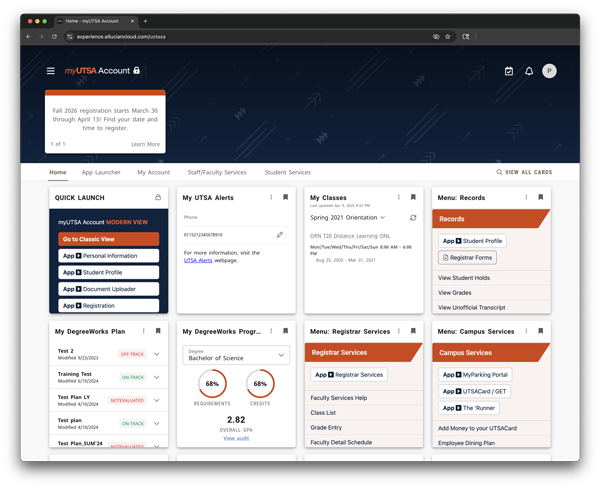
myUTSA Account is your primary student portal and an important tool throughout your time at UT San Antonio. In one place, you can find your personal information, accounts, registration, and more.
You can access your myUTSA Account on a computer or on your mobile phone, and the portal is designed to be mobile‑friendly and easy to use on any device. You can customize your home page with the tools you use most, explore organized sections like apps, services, and your account, and stay informed through announcements and reminders about important deadlines and university updates. Additional resources and guidance for navigating your student portal are available below.
If you’re experiencing technical issues accessing your student portal, please contact Tech Cafe at [email protected] or 210-458-5555.
How to Log In To Your myUTSA Account
To access your myUTSA Account, you will first need to activate your myUTSA ID. Please review the step-by-step instructions below for activating your account and logging in to the portal.
Students can activate their myUTSA ID after they apply to UT San Antonio.
- Submit your UT San Antonio admission application.
- Within 36-48 hours, you will receive an email from “[email protected]” that includes a link to activate your myUTSA ID.
- If you need to reset your password/passphrase, visit the UT San Antonio Passphrase Portal.
- Follow the on-screen instructions until you successfully activate your account and myUTSA ID. Please note that the contact information you input will be used in the future if you need to reset your passphrase or recover your myUTSA ID.
If you need any help, please contact UT San Antonio Tech Café at 210-458-5555 during business hours or email [email protected].
To log in to your myUTSA Account, please visit my.utsa.edu and click on “myUTSA Account” under the Student Resources section. You will use your myUTSA ID and passphrase to log in to the portal.
Yes, you can reset your passphrase by visiting the UT San Antonio Passphrase Portal.
- Go to passphrase.utsa.edu.
- Click on “Reset Your Passphrase.”
- Enter your myUTSA ID.
- Select where you want to send the passphrase reset link to, email or phone. Your email or phone must match what you used when you initially claimed your myUTSA ID.
- Click on the link sent to you based on what you selected. Please note that the reset code will expire within 2 hours of its delivery.
- Once you successfully reset your passphrase, you will receive a confirmation text or email.
If you need any help, please contact UT San Antonio Tech Café at 210-458-5555 during business hours or email [email protected].
Duo Two-Factor Authentication
Duo two-factor authentication is required to access student financial information in the myUTSA Account. This requirement is part of a continued effort to protect student data across the UT System. Visit our Duo resource page for complete log in instructions, a handy FAQ and more information.
How to Navigate myUTSA Account
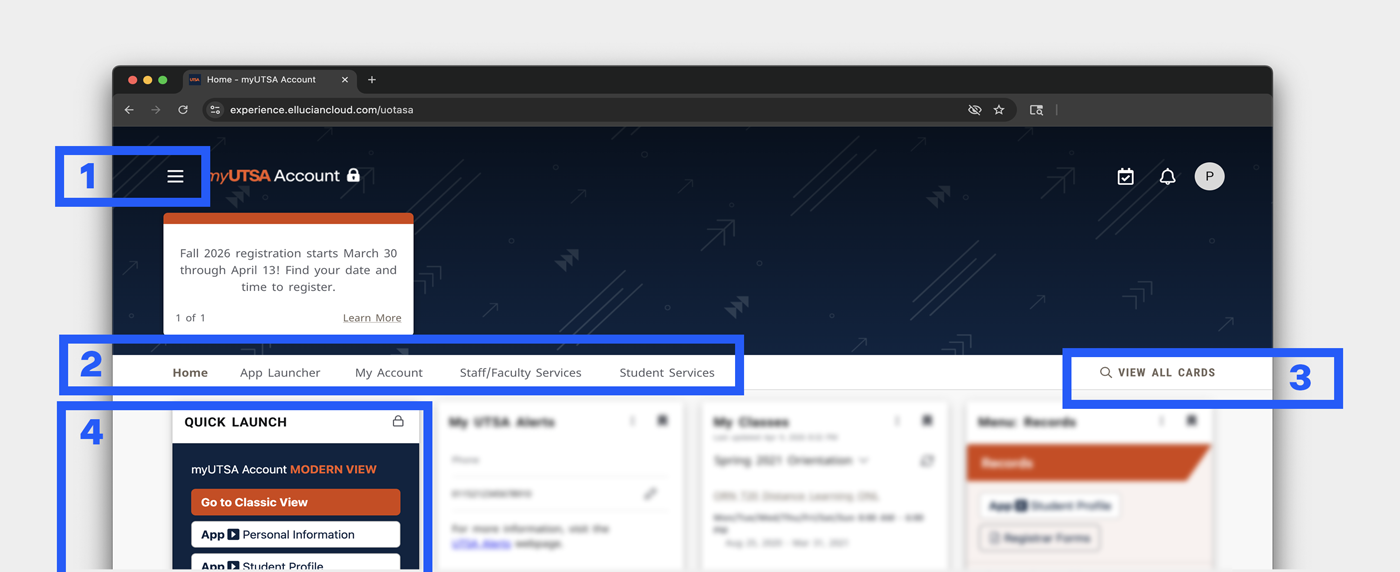
Menu (☰) – The menu icon (sometimes called the “hamburger menu”) appears near the top of the page. When you click it, a panel slides out from the left side of the screen, giving you one‑click access to all main navigation options. This side panel shows the same sections listed below, making it easier to see and switch between areas without scrolling.
Section Tabs – Just below the announcement area, you’ll find a row of tabs that group cards by purpose. These tabs help you quickly move between major sections of myUTSA, including:
- App launcher: single cards that open commonly used applications, such as Canvas, Document Uploader, Adobe Creative Cloud, and other tools you may use for classes or university business.
- My Account: Personalized cards with your information, including your class schedule, Degree Works plan, academic advisor, and alert settings. This section shows details connected specifically to you.
- Staff/Faculty Services: Cards that offer tools, resources, and services for employees.
- Student Services: Cards that provide access to university offices, resources, and services designed to support students, including enrollment, financial aid, advising, and campus services.
Each tab opens a page with pre‑filtered cards related to that category.
View All Cards (🔍) – The View All Cards option (with a magnifying glass icon) takes you to a full catalog of all available cards in myUTSA. From there, you can search by keyword or browse cards to find specific tools, services, or information available in the system.
Quick Launch – Quick Launch is a fixed card on your myUTSA Account home page that is always visible and cannot be removed. It includes buttons to the most commonly used applications, giving you fast, one‑click access—no searching needed.
Mobile Version
You can download the myUTSA app on your iPhone or Android device. The app displays the same experience as the myUTSA Account website, so what you see and use in the app matches the web version. If you’re looking for quick access without downloading an app, you can also add the myUTSA Account website directly to your phone’s home screen.
Download the myUTSA App
Please note the myUTSA mobile app mirrors the web version of myUTSA Account.
- Apple users: myUTSA on the Apple App Store
- Android users: myUTSA on Google Play Store
Add myUTSA to Your Phone’s Home Screen
Adding myUTSA to your home screen lets you open it like an app, with one tap.
iPhone
- Open Safari and launch your myUTSA Account.
- Tap the Share icon (the square with the arrow pointing up).
- Scroll down and tap Add to Home Screen.
- Rename it (optional), then tap Add.
- Your myUTSA Account will now appear on your home screen like an app.
Android
- Open Chrome and go to the myUTSA Account website.
- Tap the three‑dot menu in the top‑right corner.
- Select Add to Home screen.
- Confirm by tapping Add.
- You can now open myUTSA directly from your home screen.
Accounts and Applications Related to Enrollment
Add the “Menu: Admissions ” card to see all the relevant applications you’ll need related to checking your admissions status, academic standing, admissions forms, and more.
Here are some helpful applications and websites:
Website – App: Document Uploader
Website – Admissions Forms
Website – Checking Your Admission Status
Website – Rowdy Ready Checklist
Website – Orientation
Add the “Menu: Financial Aid & Scholarships” card to see all the relevant applications you’ll need related to applying for financial aid and scholarships, submitting financial aid forms and other available options such as summer financial aid and emergency aid.
Here are some helpful applications and websites:
Website – App: Scholarship Hub
Website – App: Document Uploader
Website – Financial Aid Forms
Website – Applying for Financial Aid
Website – Applying for Scholarships
Website – Accepting Your Financial Aid
Website – Maintaining Eligibility
Add the “Menu: Registration & Records” card to see all the relevant applications you’ll need related to class registration and viewing your student records such as grades.
Here are some helpful applications and websites:
Website – App: DegreeWorks
Website – App: Schedule Planner
Website – App: Document Uploader
Website – Registrar Forms
Website – Class Registration
Website – Class Schedule
Add the “Menu: Graduation & Commencement” card to see all the relevant applications you’ll need related to applying for graduation, verifying diploma name and submitting forms.
Here are some helpful applications and websites:
Website – App: DegreeWorks
Website – App: Document Uploader
Website – Registrar Forms (under Graduation)
Website – Graduation Checklist
Website – Graduation Deadlines
Website – Grad Fest
Website – Commencement
Add the “Menu: Personal Information” card to see all the relevant applications you’ll need related to viewing and updating your personal information and FERPA Proxy.
Here are some helpful websites:
Website – Name Change
Website – Personal Information
Add the “Menu: Testing Services” card to see all the relevant applications you’ll need related to registering for tests, authorizing TSI scores and more.
Here are some helpful applications and websites:
Website – Texas Success Initiative (TSI) Assessment
Website – ALEKS Placement
Website – Other Tests at UT San Antonio
Other Resources in your myUTSA Account
We have curated over 15 Menu Cards on the myUTSA Account that houses various resources available to you across UT San Antonio. We encourage you to log in to your myUTSA Account and check out all the awesome resources on the Quick Launch card, Menu Cards, Community Cards, personalized My Cards and Applications.